
What Is Google Search Console?
Google Search Console, often called GSC, is a free tool from Google that helps website owners, SEO specialists, developers and marketers understand how a website performs in Google Search.
It does not show every visitor like Google Analytics. Instead, it focuses on search visibility. It helps you understand how often your website appears in Google, which search queries trigger your pages, which pages receive clicks, whether important pages are indexed, and whether Google has found technical or page experience issues.
Google Search Console can help answer questions such as:
- Which keywords are bringing impressions?
- Which pages are getting organic clicks?
- Which pages have low CTR?
- Which pages are ranking but not getting enough traffic?
- Which pages are not indexed?
- Has Google discovered my sitemap?
- Are there Core Web Vitals issues?
- Are important pages eligible to appear in Google Search?
- Which countries and devices are driving search visibility?
- Are technical SEO issues limiting growth?
Why Google Search Console Matters for SEO
SEO should never be based on guesswork. Google Search Console gives you real data directly from Google Search, which makes it one of the most valuable tools for SEO decision-making.
A business may think its website is not ranking at all, but GSC may show that the site is already getting impressions for important keywords. Another business may be getting impressions but very few clicks, which often means the titles and meta descriptions need improvement. Another site may have strong content, but key pages are not indexed properly.
Google Search Console helps you:
- Understand current organic visibility
- Find keywords you are already appearing for
- Identify pages that need better titles and meta descriptions
- Discover indexing issues
- Find pages losing clicks or impressions
- Track technical SEO problems
- Understand device and country performance
- Monitor Core Web Vitals issues
- Check sitemap discovery
- Prioritise SEO work based on real data
What Data Does Google Search Console Show?
Google Search Console shows several types of SEO data.
Search Performance Data
Clicks, impressions, CTR and average position help you understand how your website appears and performs in Google Search.
Search Query Data
GSC shows the search terms people use when your website appears in search results. These are not always the same as the keywords you intentionally targeted, which makes this report powerful for discovering hidden opportunities.
Page Performance Data
You can see which pages receive the most clicks and impressions. This helps you identify your strongest pages, weak pages and pages that need improvement.
Indexing Data
The Page indexing report shows which pages are indexed, not indexed, discovered, crawled, blocked, duplicated or excluded for different reasons.
URL Inspection Data
The URL Inspection tool helps you check how Google sees a specific URL and whether that page is indexed or has issues.
Sitemap Data
You can submit XML sitemaps and check whether Google has processed them.
Page Experience and Core Web Vitals Data
GSC can show whether groups of pages have Core Web Vitals issues based on real user experience data where available.
Enhancements and Structured Data
If your website uses supported structured data, GSC may show enhancement reports that help identify valid or invalid markup.
How to Set Up Google Search Console
To use Google Search Console, your website needs to be added and verified.
Step 1: Add Your Website Property
You can add your website as a domain property or URL-prefix property. A domain property can include http, https, www, non-www and subdomains. A URL-prefix property tracks only the exact URL version you add. For most businesses, a domain property is usually the better setup because it gives a more complete view.
Step 2: Verify Ownership
Google needs to confirm that you own or manage the website. Common verification methods include DNS record, HTML file upload, HTML tag, Google Analytics, Google Tag Manager, or hosting provider verification.
Step 3: Submit Your XML Sitemap
Once verified, submit your XML sitemap so Google can discover your important URLs more efficiently.
Step 4: Check Important Reports
- Performance
- Page indexing
- Sitemaps
- URL Inspection
- Core Web Vitals
- Enhancements if available
Step 5: Connect With Your SEO Workflow
Google Search Console should not sit unused. Review the data regularly and use it to guide SEO decisions — this is how a healthy technical SEO audit workflow starts.
Google Search Console Performance Report
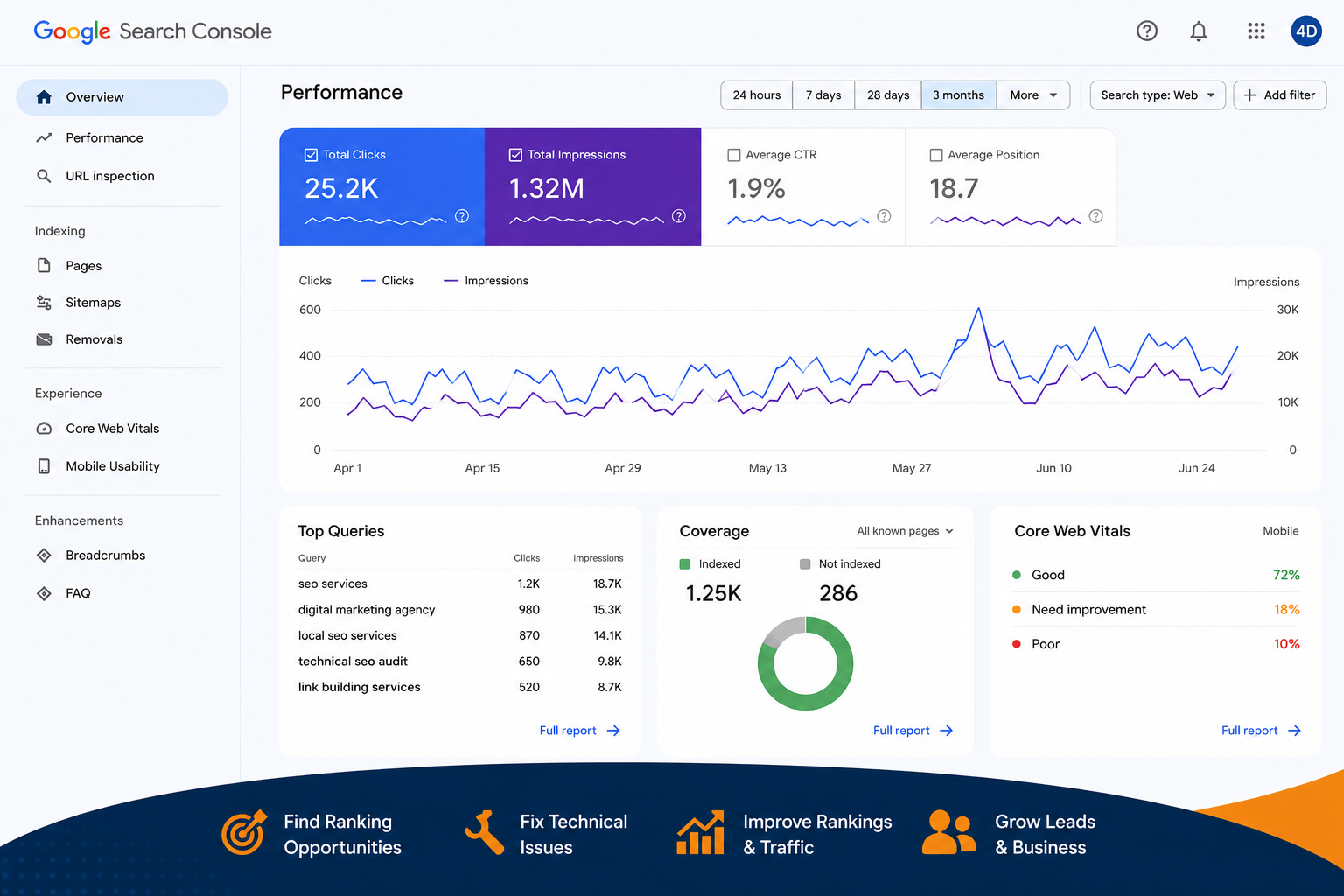
The Performance report is one of the most important reports inside Google Search Console. It shows total clicks, total impressions, average CTR and average position.
Clicks
Clicks show how many times users clicked your website from Google Search results.
Impressions
Impressions show how many times your site appeared in Google Search results.
CTR
CTR, or click-through rate, shows the percentage of impressions that became clicks.
Average Position
Average position shows the average ranking position of your site for selected queries, pages, countries, devices or search appearances.
Queries
The Queries tab shows the search terms that triggered your website.
Pages
The Pages tab shows which URLs received impressions and clicks.
Countries
The Countries tab shows where search visibility is coming from.
Devices
The Devices tab helps compare desktop, mobile and tablet performance.
Search Appearance
This can show data related to different search result features when available.
How to Find Keyword Opportunities in GSC
One of the best ways to use Google Search Console is to find keywords where your website is already getting impressions but not enough clicks. Look for queries with high impressions, low clicks, low CTR, an average position between 4 and 20, strong business relevance and clear search intent. These are often quick-win SEO opportunities.
Example Opportunity
If your website gets impressions for “local SEO services” but very few clicks, you may need to improve the page title, meta description, page content, H1 and headings, internal links, FAQs, search intent match, trust signals or CTA placement.
Keyword Opportunity Types
- Keywords close to page one
- Keywords already on page one with low CTR
- Long-tail keywords
- Local keywords
- Branded keywords
- Service keywords
- Informational blog keywords
- Product keywords
- Comparison keywords
How to Improve CTR Using Search Console
CTR is one of the most useful metrics in Google Search Console. A page may be getting many impressions but very few clicks. This often means people are seeing the result, but the title or meta description is not strong enough.
To improve CTR, review pages with high impressions, low CTR, commercial search intent, rankings in visible positions, weak page titles and generic meta descriptions.
Ways to Improve CTR
- Writing clearer title tags
- Including the primary keyword naturally
- Adding a stronger benefit
- Matching search intent
- Making the meta description more specific
- Adding location or service relevance
- Using proof where appropriate
- Avoiding vague copy
- Improving structured data where relevant
Example
Weak title: “SEO Services”.
Better title: “SEO Services for Small Businesses | Grow Traffic & Leads”.
For local pages: “SEO Services Manchester | Local SEO Agency for Leads”.
The better title is clearer, more specific and more aligned with what users may want.
How to Use the Page Indexing Report
The Page indexing report helps you understand which pages Google has indexed and which pages are not indexed. This matters because a page generally needs to be indexed before it can appear in Google Search.
The report can show issues such as:
- Crawled but not indexed
- Discovered but not indexed
- Duplicate without user-selected canonical
- Alternate page with proper canonical
- Excluded by noindex tag
- Blocked by robots.txt
- Not found 404
- Soft 404
- Redirected page
Which pages should be indexed?
Not every non-indexed URL is a problem. Some URLs should not be indexed, such as thank-you pages, duplicate filter URLs, internal search pages or removed pages with no replacement. The key question is: are your important pages indexed?
- Homepage
- Main service pages
- Location pages
- Product category pages
- Important product pages
- Case studies
- High-value blogs
- Contact page
- Conversion pages
How to Use URL Inspection
The URL Inspection tool lets you check a specific URL. Use it when you want to know:
- Is this page indexed?
- Can Google crawl this URL?
- Which canonical URL did Google choose?
- Is the page blocked?
- Did Google detect structured data?
- Is the page mobile usable?
- When was it last crawled?
- Can I request indexing?
When to use URL Inspection
- You publish a new service page
- You update a blog post
- You fix a noindex issue
- You change canonical tags
- You update schema
- You fix a redirect
- You improve internal links
How to Submit and Check Sitemaps
An XML sitemap helps Google discover important pages on your website. In Google Search Console, you can submit your sitemap and check whether Google has processed it.
What a sitemap should include
- Homepage
- Service pages
- Location pages
- Industry pages
- Blog posts
- Case studies
- Product categories
- Product pages
What a sitemap should not include
- Noindex pages
- Redirected URLs
- 404 URLs
- Duplicate URLs
- Internal search pages
- Filter URLs that should not be indexed
- Staging URLs
Core Web Vitals in Google Search Console
Google Search Console includes Core Web Vitals reporting where enough data is available. Core Web Vitals focus on real user experience signals such as loading performance, interactivity and visual stability.
Common issues may relate to:
- Slow page loading
- Layout shifts
- Heavy images
- Render-blocking scripts
- Poor mobile performance
- Slow server response
- Too much unused code
Google Search Console for Local SEO
Google Search Console is very useful for local SEO. Local businesses can use GSC to find city-based keywords, “near me” keyword patterns, service + location searches, pages getting local impressions, location pages with low CTR, blog topics that support local services, search demand by country or region and mobile search performance.
For example, a local service business may discover impressions for:
- plumber near me
- emergency plumber in Birmingham
- dental clinic Manchester
- SEO consultant London
- roof repair Leeds
- cleaning company Bristol
How to act on local GSC data
- Google Business Profile support content
- Local landing pages
- Service pages
- FAQs
- Internal links
- Local schema
- Location-specific CTAs
Google Search Console for eCommerce SEO
For ecommerce websites, Google Search Console can reveal product and category page opportunities. eCommerce businesses can use GSC to check which product categories get impressions, which collection pages get clicks, which product pages are indexed, which pages have low CTR, which queries include buying intent, which pages are losing traffic, which technical issues affect product visibility and whether important category pages are missing from Google.
Important ecommerce pages to monitor
- Main category pages
- Collection pages
- Product pages
- Best-selling products
- Seasonal categories
- High-margin products
- Blog buying guides
- Comparison content
Google Search Console for Technical SEO Audits
Google Search Console is one of the first tools to check during a technical SEO audit. A technical SEO audit using GSC should review:
- Page indexing issues
- Sitemap status
- URL Inspection results
- Canonical signals
- Crawled but not indexed pages
- Duplicate URL problems
- 404 and soft 404 issues
- Redirected URLs
- Mobile usability
- Core Web Vitals
- Structured data enhancements
- Manual actions or security issues if present
Judgement matters
The goal is not to fix every warning blindly. The goal is to identify which issues affect important pages and business outcomes. A noindex tag on a thank-you page may be fine. A noindex tag on a main service page is a serious problem. A duplicate filter URL may be normal. A duplicated product category page may need canonical cleanup. A 404 from an old removed page may be fine. A 404 with strong backlinks may need a redirect.
Common Google Search Console Issues
Here are common GSC issues businesses often see.
Crawled But Not Indexed
Google has crawled the page but has not indexed it. This can happen because of thin content, duplicate content, weak internal linking, low quality signals or because Google does not consider the page important enough yet.
Discovered But Not Indexed
Google knows the URL exists but has not crawled it yet. This may happen on large websites, new websites or pages with weak internal links.
Duplicate Without User-Selected Canonical
Google found duplicate content and chose a canonical URL itself. This should be reviewed if the affected page is important.
Alternate Page With Proper Canonical
This is often normal if canonical tags are set correctly.
Excluded by Noindex Tag
This means the page has a noindex directive. That is fine for pages you do not want indexed, but dangerous if applied to important pages.
Not Found 404
A 404 means the URL is not found. Some 404s are normal, but valuable URLs with backlinks or traffic may need redirects.
Soft 404
A soft 404 happens when a page looks like an error or thin page but does not return the correct 404 status. This can confuse search engines.
Redirect Error
This may happen if a redirect chain is broken, too long or incorrectly configured.
Sitemap Contains Non-Indexable URLs
Your sitemap should only include clean, important, indexable URLs.
90-Day Google Search Console SEO Plan
Use this practical 90-day plan.
First 30 Days: Audit and Understand
- Verify GSC setup
- Check domain and URL-prefix properties
- Review Performance data
- Identify top queries
- Identify top pages
- Check pages with high impressions and low CTR
- Review Page indexing report
- Inspect important URLs
- Check sitemap status
- Review Core Web Vitals
- Export key data
- Create priority action list
Days 31–60: Fix and Optimise
- Improve title tags and meta descriptions
- Optimise pages with impressions but low clicks
- Fix indexing issues on important pages
- Improve internal linking
- Submit clean sitemaps
- Fix technical SEO issues
- Update thin service pages
- Improve local landing pages
- Add FAQs where useful
- Request indexing for updated important pages
Days 61–90: Expand and Grow
- Create content for keyword gaps
- Strengthen pages close to page one
- Improve CTR on high-impression pages
- Build supporting blog content
- Review ranking and click changes
- Monitor indexed pages
- Improve conversion paths
- Connect GSC insights with GA4
- Plan the next 90 days based on results
Google Search Console Checklist
Use this checklist to keep your GSC workflow consistent.
Setup Checklist
- Website added to GSC
- Ownership verified
- Domain property checked
- URL-prefix property checked if needed
- XML sitemap submitted
- Important users have access
Performance Checklist
- Review clicks
- Review impressions
- Review CTR
- Review average position
- Check queries
- Check pages
- Compare date ranges
- Check device performance
- Check country performance
- Export keyword opportunities
Indexing Checklist
- Check important pages are indexed
- Review non-indexed URLs
- Inspect priority URLs
- Fix noindex mistakes
- Review duplicate/canonical issues
- Check 404 and soft 404 issues
- Validate fixes where appropriate
Content Checklist
- Find pages with high impressions and low clicks
- Improve page titles
- Improve meta descriptions
- Update weak content
- Add FAQs
- Improve internal links
- Create content for keyword gaps
Technical Checklist
- Review sitemap status
- Check Core Web Vitals
- Review mobile usability
- Check structured data enhancements
- Fix crawl and indexing issues
- Monitor after changes
When to Hire an SEO Expert for GSC
Many business owners can check Google Search Console themselves, but interpreting the data correctly is where SEO experience matters. You may need an SEO expert if:
- Important pages are not indexed
- Traffic has dropped and you do not know why
- Impressions are growing but clicks are not
- You have many indexing errors
- Your sitemap has problems
- Your average position is stuck
- Your pages rank but do not generate leads
- You are unsure which issues matter
- You recently redesigned or migrated your website
- Your ecommerce store has many product or category indexing issues
- You want a clear SEO roadmap based on real data
Final Thoughts
Google Search Console is one of the most important SEO tools for any business that wants to grow through organic search.
It shows how your website appears in Google, which queries bring visibility, which pages get clicks, which pages are not indexed, and where technical or content issues may be holding you back.
But the real value is not just logging into GSC. The value comes from knowing what the data means and what action to take next.
Used properly, Google Search Console can help businesses improve rankings, increase qualified traffic, fix technical issues, strengthen content, improve CTR and build a clearer path toward more leads, enquiries and sales.